
XML with CSS
You can use CSS to style your XML documents.
In a previous lesson, we saw what a raw XML document looks like when viewed with a browser. To refresh your memory, here's what a raw XML file looks like in Firefox:
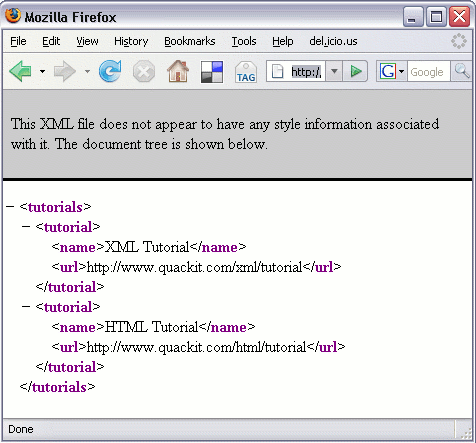
You might notice that, apart from some basic formatting, it doesn't look much different to viewing the file in a text editor such as Notepad. This is to be expected because the browser doesn't know anything about how our tags/elements should appear so it just displays it as is. Firefox even provides us with a message stating that the document has no style information associated with it.
In order to change this, we need to specify some styles that stipulate how our XML should be displayed. We can do this using Cascading Style Sheets (CSS).
If you're familiar with HTML, you'll probably know that CSS is used for adding styles to HTML documents. You can also use CSS to add styles to XML documents.
If you're not familiar with CSS, you might like to read the CSS Tutorial.
Applying CSS
This XML document has been styled using CSS. If your browser supports XML and CSS, it should look something like this:
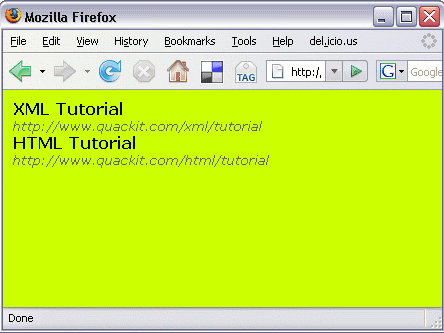
How To Do That?
You need two files: The XML file, and a CSS file. In your XML document, you need to add one line of code. This one line of code tells the processor to display the XML using styles from the external style sheet.
-
Create an XML file with the following content and save it:
In order to style our XML document (which contains the 4 elements
tutorials,tutorial,nameandurl), we can simply add those elements to our style sheet, followed by the styles we want to be applied to that element. If we don't need to style an element, we can omit it from the style sheet. -
Create a file with the following content and save it as tutorials.css into the same directory as the XML file.
Now, when you view your XML file in a browser, it will be styled using the styles from the CSS file.